Did you faced any problem while integrating autoplay video in Shopify Stores? Here is the bottom line on autoplaying video in Shopify themes.
Let’s Get Started.

Original Source by Shopify Experts Community
Table of contents
Open Table of contents
How to Upload Video in Shopify?
Enabling product video autoplay on a Shopify store and whether it’s advisable.
- Login to Shopify Store
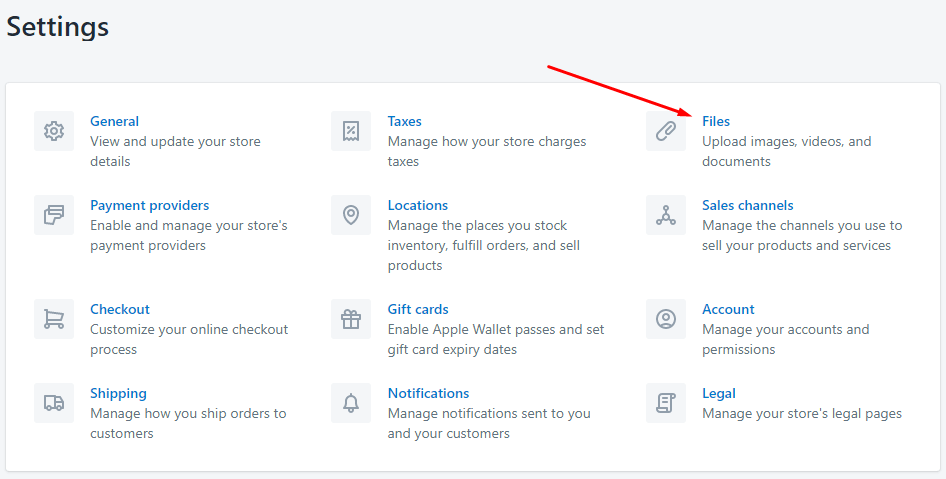
- Go to Settings
- Click on Files Upload Section
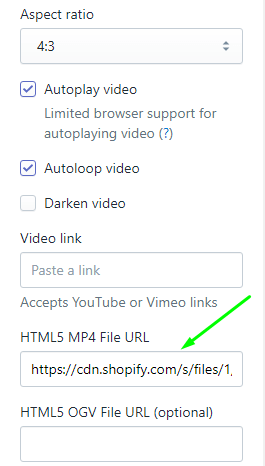
- Upload Video and Copy Video Link
Next click on theme settings and find video section.

Expand the section and paste video link.
Hit Save. ✅
How to Use Better Video?
Audio and video can be a easiest way to engage customers, tell your story and even increase conversion rates, but recent trends by the companies that develop browsers that made it more difficult to use video and audio in your Shopify theme — especially if you want it to autoplay.
Nearly all of the major browsers — Chrome, Firefox, Edge and Safari — have at least some limitations on video, particularly video with audio, that prevents it from autoplaying and the restrictions tend to become even more strict on tablets and smartphones.
Almost all popular Web browsers have an option, whether natively built in or available via a plugin or add on, to block autoplaying video and audio based on the user’s preferences.
This can be done globally — that is the browser might be instructed to block all instances of video from starting automatically. It’s also possible to block this feature on a per site basis or the browser might leverage machine learning and a user’s browsing history to determine if an audio or video file should automatically play or not.
We won’t get into the nuances of which browser does what, not only because it changes all the time, but because there are typically so many variables that it’s difficult to outline hard and fast rules.
It’s also important to note that autoplay rules are most likely to change — and probably get stricter as time go on — so preparing yourself now with these tips will be a good step toward making your site ready for down the road.
How to Make Video Autoplay in Shopify?
After video embedded in your video section. You have to do some code modifications in theme to make your video autoplay.
Here is the Script that works well.
Place the following code in app.js.liquid Click here to see Screenshot.
// Modern browsers require videos to be muted to autoplay automatically

$(document)
    .ready( function(){
    $("#video").attr('muted', 'muted');
    console.log("Sss");
    //      $("#video").trigger('click');
    var media = document.getElementById("video");
// const playPromise = media.play();
// if (playPromise !== null){
//      playPromise.catch(() => { media.play(); })
// }

media.load();
        media.pause();
media.play();
setTimeout(function() {
    media.play();
}, 500);
//$("#video").attr('muted', 'muted');
//  var playPromise = document.querySelector('video').play();

// // In browsers that don't yet support this functionality,
// // playPromise won't be defined.
// if (playPromise !== undefined) {
//      playPromise.then(function() {
//          // Automatic playback started!
//      }).catch(function(error) {
//          // Automatic playback failed.
//          // Show a UI element to let the user manually start playback.
//          console.log(error);
// //       document.querySelector('video').play();
app.js.liquid
After this open include-video.liquid. Place the following code in include-video.liquid.
Here is the “Best Practice” Modern Liquid version of that old snippet.
{% comment %} Wrapper to contain everything cleanly {% endcomment %}
<div class="homepage-video--media"
     data-video-id="video-{{ id }}"
     data-provider="{% if video.type != blank %}{{ video.type }}{% elsif mp4 != blank %}html5{% endif %}">

  {% comment %}
    IMPROVEMENT 1: Better Video Tag
    - Added `playsinline`: CRITICAL for iOS to allow autoplay without forcing fullscreen.
    - Added `muted`: Explicitly stated alongside autoplay for cross-browser reliability.
    - Removed the clunky inline `onclick` JS in favor of handling it via standard JS files.
  {% endcomment %}
  <video id="video-{{ id }}"
         class="homepage-video__player"
         {% if autoplay %} autoplay muted playsinline {% endif %}
         {% if autoloop %} loop {% endif %}>

    {% if mp4 != blank %}
      <source src="{{ mp4 }}" type="video/mp4">
    {% endif %}
  </video>

  {% comment %}
    IMPROVEMENT 2: Modern Image Tag
    This single line replaces the massive 15-line `srcset` block from the original code.
    Shopify's `image_tag` automatically generates the perfect `srcset` and `sizes` for you.
  {% endcomment %}
  {% if image != blank %}
    {{ image | image_url: width: 1500 | image_tag:
        class: 'homepage-video__image lazyload',
        loading: 'lazy',
        sizes: '100vw',
        alt: image.alt | default: title | escape
    }}
  {% endif %}

</div>
include-video.liquid
Notice for Non-Technical Users
Caution:
This method is only working with video hosted on Shopify CDN along with Mp4 format.
Note from Shopify Plus Developers
If you are not a professional coder don’t try this on your own.
This method can be only implemented by Shopify Experts Developers. Failing that, there are some Shopify Developers that specialize in smaller, theme-related tasks from us that you can check out.
Looking for help with Shopify Store Design and Development?
We don’t just build Shopify stores. We build e-commerce empires. Ready to launch yours? We’re here to help.